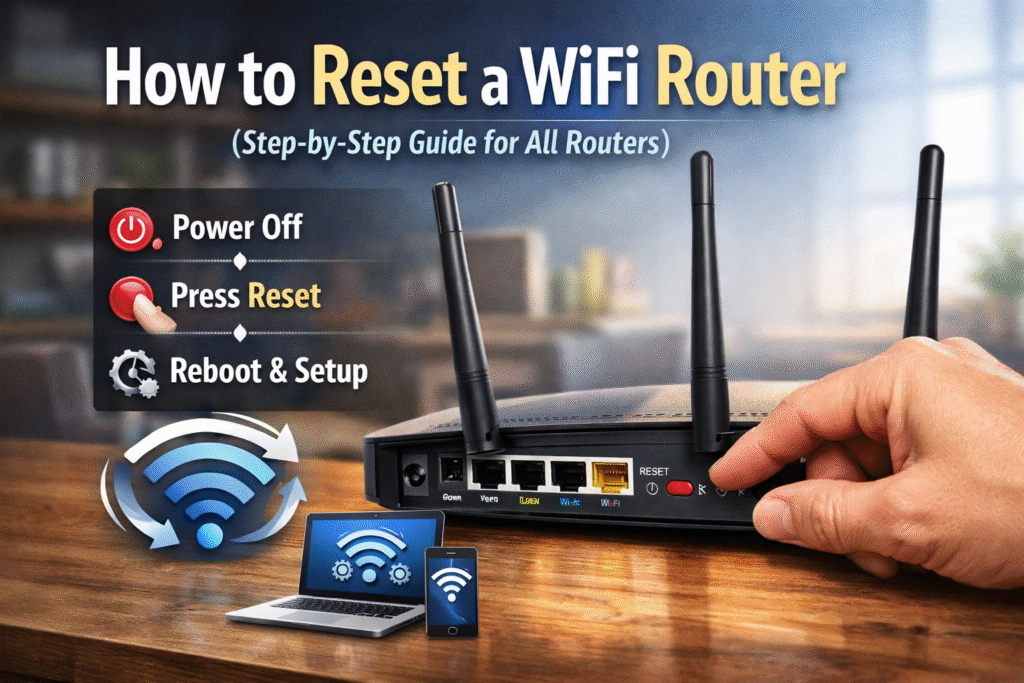

Sometimes, fixing internet issues only requires resetting your Wi-Fi router. This means that you can resolve a number of issues, such as slow speed, forgotten password, or network errors, by simply resetting your Wi-Fi router. Whether you have a complete office setup or you are using a home router, this guide will provide you with the steps for how to reset router easily and safely.
When is it required to reset a Wi-Fi router?
There are different situations when resetting a Wi-Fi router can be beneficial for you.
- Your internet connection keeps dropping.
- The speed of Wi-Fi is quite slow.
- You do not remember the Wi-Fi password or login details.
- The router is not responding properly.
Types of Router Reset
Before learning how do you reset a WiFi router, you should know that there are two primary types of resets:
- Soft Reset (Reboot): Simply turning the router off and on again; this does not erase configurations.
- Hard Reset (Factory Reset): This brings the router back to its out-of-the-box state.
Even though the hard reset is the most drastic approach, the guide will still mainly talk about it since it gets rid of most recurring problems.
Step-by-Step Instructions for Resetting a Wireless Router
- Keep the Router Powered On
The router should be connected to the power supply and switched on. If the router is switched off, a reset will not be effective.
- Find the Reset Switch
Discover the tiny reset hole or switch at the rear or underneath the router; mostly, it is marked as “Reset”.
- Press and Keep the Reset Switch Down
Use a paper clip, pin, or any similar object to press and keep the reset button down for 10-30 seconds. The actual time may vary with the router type.
- Observe the Indicator Lights
The router’s lights may flash or go off and on while you hold the button. This means the reset is in progress.
- Let Go and Wait
Let go of the reset button and wait for 2-5 minutes, during which time the router will restart and return to the factory settings.
Complete the router configuration after resetting the Wi-Fi router
After the router reset is done, it has to be configured again:
- Use an Ethernet cable or the router’s printed default Wi-Fi credentials to connect your device to the router.
- Start a web browser and input the default IP address of the router (usually 192.168.0.1 or 192.168.1.1).
- Using the default username and password, log in.
- Pick a new Wi-Fi name and a strong password.
- Once the settings are saved, reconnect your devices.
Important things to keep in mind
- If resetting is necessary, router settings should be backed up first, if at all possible.
- Only do factory resets as a last resort, not as a regular maintenance method.
- Securing the router in a ventilated area will help reduce the chances of overheating.
- Resetting the router is a good time to do a firmware upgrade for better security and performance.
Lastly, we also recommend using the website Datarecovee to learn more about Wi-Fi issues and how to resolve them.
Read more blogs here: trackcourier.xyz